
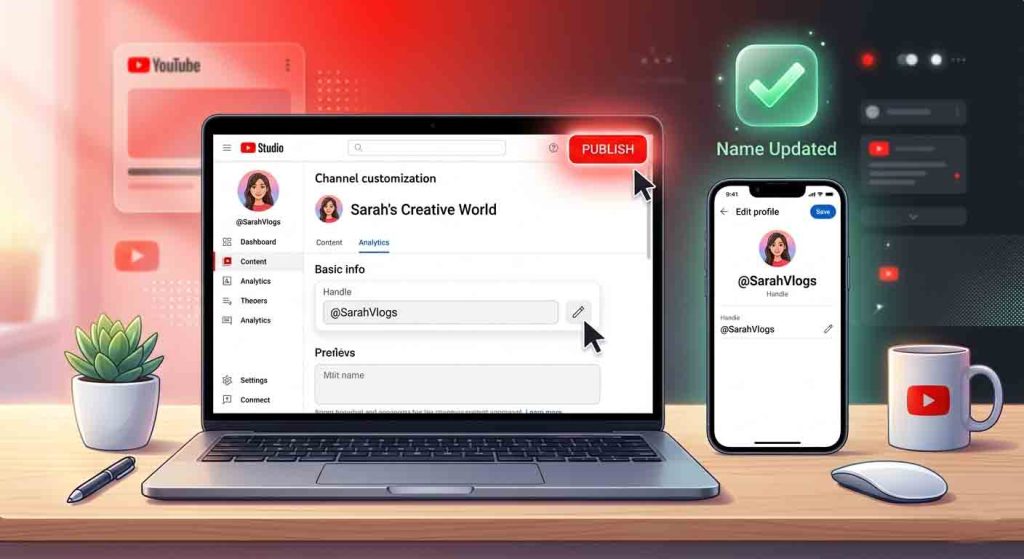
How to Change YouTube Username
Your YouTube channel name serves as your digital handshake, forming the critical first impression for every potential subscriber. However, as your brand grows, content evolves, or you simply outgrow an old handle, you might feel stuck with an identity that no longer fits. The good news is that the process is no longer a complicated secret. This updated guide will walk you through exactly how to change YouTube username, profile name, and URL across all devices.
The Crucial Difference: Channel Name vs. Handle
Before diving into the steps, it is vital to understand the distinction between these two identifiers, as they function very differently despite often being used interchangeably.
Channel Name: This is the public-facing name that appears on your channel page, next to your videos, and in search results. Channel names are not unique. Multiple channels can technically share the same name, although YouTube will suggest variations for clarity. Your channel name is your brandable title and can be changed freely, though there are frequency limits.
Handle (Username/URL): Introduced in late 2022, handles are unique identifiers starting with the “@” symbol (e.g., @YourChannelName). Your handle automatically becomes your YouTube URL (youtube.com/@YourChannelName). Unlike the channel name, the handle is designed to establish a distinct, searchable presence and is used for tagging and mentions across the platform.
What to Consider Before Changing Your Name
Changing your digital identity involves more than just typing new text. Here are crucial pre-update checkpoints:
- Verification Badge: If you have a verification checkmark, changing your channel name will cause you to lose it immediately. You will need to reapply for verification after the name change is live. However, changing your handle does NOT remove your verification badge. This is a major distinction to consider during a rebrand.
- Frequency Limits: You are limited to two channel name changes and two handle changes within a 14-day rolling period. YouTube implements this to prevent confusion and abuse.
- Old Handle Lock-In: When you change your handle, your old handle remains reserved exclusively for your account for 14 days. After this period, it is released back to the public and can be claimed by anyone. This creates a brief window for you to revert your decision.
- Search & Consistency: Changing your name might temporarily impact your search rankings as the algorithm re-associates your content with the new keywords. Always update your social media bios and external links to maintain brand consistency.
Complete Tutorial: How to Change YouTube Username on Desktop (PC/Mac)
Using YouTube Studio on a desktop browser is the most comprehensive method and is recommended for major rebrands.
Step 1: Access YouTube Studio
Navigate to studio.youtube.com and sign in using your Google account credentials. Unlike the standard YouTube interface, the Studio dashboard is where all channel management occurs.
Step 2: Navigate to Customization
On the left-hand sidebar, locate the Customization menu item (often represented by a magic wand or paintbrush icon). Clicking this opens your channel’s visual and profile management area.
Step 3: Edit Your Channel Name
Under the “Basic info” or “Profile” tab (depending on UI updates), you will see your current channel name displayed. Click the pencil icon to the right of the text field, type your new desired name, and ensure it adheres to YouTube’s Community Guidelines regarding spam or impersonation.
Step 4: Update Your Handle (URL)
Scroll down to the section labeled Handle. If you wish to update your unique username, type a new unique identifier (starting with @) into this field. YouTube will instantly check availability. If the handle is taken, you will need to select a variation.
Step 5: Publish Your Changes
After making your adjustments, navigate to the top-right corner of the screen and click the PUBLISH button. Do not navigate away immediately; wait for the confirmation modal indicating the changes have been saved. It may take a few minutes to a few hours for the new name to fully propagate across the platform.
Tutorial: How to Change YouTube Username on the Mobile App
If you prefer to manage your channel on the go via the YouTube mobile app (Android/iOS), follow these steps:
- Navigate: Tap your Profile Picture in the bottom right corner of the app.
- Go to Channel: Tap the “View Channel” option.
- Edit Profile: Tap the pencil icon located next to your channel name and description section.
- Change Name/Handle:
Business & Brand Strategy: Leveraging Your New Identity
Understanding how to change YouTube username is only the first technical step. Effective creators use this capability to drive growth.
- Keyword Optimization: If you are a travel vlogger, including the city name in your handle (e.g., @TokyoAdventures) can help with discoverability.
- Omnichannel Branding: Your YouTube handle should ideally match your Instagram, TikTok, and X (Twitter) handles. This creates a seamless “find me everywhere” experience for your audience, reducing friction and building a stronger channel identity.
- URL Customization: A clean, short handle generates a clean, short URL. Use
youtube.com/@YourNewNamein all your email signatures and business cards for professional branding.
Troubleshooting: Why Can’t I Change My Name?
If you encounter an error or the “Publish” button remains gray, check for the following culprits:
- Delete Translations: If you have previously set up translated versions of your channel name (for international audiences), you must delete those translations before you can change the primary channel name.
- Pending Reviews: If your channel is under an active Community Guidelines appeal or review, editing may be temporarily locked.
- 14-Day Limit: If you just changed your name yesterday, you have used one of your two chances. You will need to wait up to 14 days for the countdown to reset.
- Trademark Conflicts: YouTube may reject a name if it attempts to impersonate a registered brand or existing famous figure.
Read Also, Is YouTube Premium Worth It?
Frequently Asked Questions (FAQ)
Q: Will changing my YouTube username affect my subscribers?
No, you will retain all your current subscribers. YouTube does not automatically send a notification to your audience just because you changed your handle. However, it is a best practice to upload a “rebranding” community post or short video to explain the change to your loyal viewers to avoid confusion regarding brand consistency.
Q: How many times can I change my YouTube username?
You are limited to two (2) changes to your channel name and two (2) changes to your handle within any 14-day period. Plan your rebrand carefully.
Q: Can I change my YouTube username without losing my verification badge?
Yes, but it depends on what you change. Changing your Handle (@username) will not remove your verification badge. However, changing your Channel Name will immediately remove the badge, requiring you to reapply.
Q: What is the difference between a handle and a channel name?
The handle is your unique identifier used for your URL and tagging (e.g., @YouTubeCreators). The channel name is your public display name (e.g., “YouTube Creators”). Multiple channels can have the same display name, but handles are unique to you.
Q: How do I update my YouTube URL after changing my handle?
You don’t need to do anything manually. As soon as you publish your new handle (e.g., @TechExpert), your new URL becomes youtube.com/@TechExpert automatically. Your old legacy URLs (youtube.com/c/OldName) will continue to redirect to your new page automatically.
Q: What happens if someone else takes my new desired handle?
Handles are first-come, first-served. If the handle is taken, you must choose a different variation. You cannot “force” a handle away from an active account unless it violates trademark law (which would require a legal claim through YouTube).
Conclusion
Understanding how to change YouTube username is an essential skill for any serious creator or business. Whether you are undergoing a full brand pivot, cleaning up an old account, or simply customizing your URL for professionalism, the process is accessible and user-friendly. By using the YouTube Studio dashboard and respecting the platform’s 14-day change limits, you can maintain a fresh, relevant channel identity without losing your hard-earned audience.