
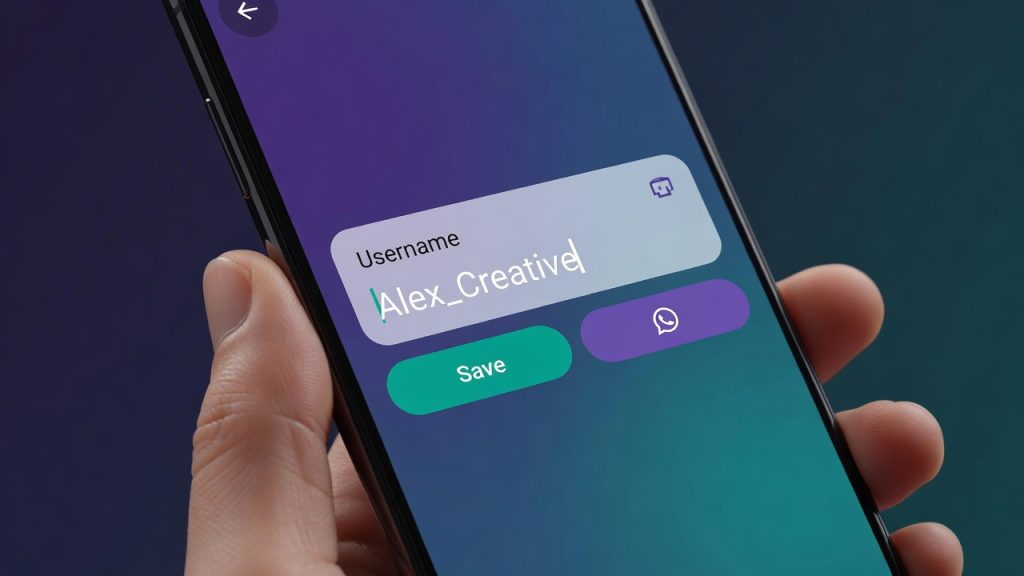
How to Create Username in WhatsApp: The Ultimate Privacy & Setup Guide
For years, WhatsApp has been the world’s most popular messaging app, but it had one significant privacy blind spot: your phone number was the key to your account. If you wanted to connect with someone, you had to give them your number. This system worked for friends and family but created friction (and anxiety) when connecting with new acquaintances, clients, or members of large group chats.
Today, that changes. WhatsApp has officially rolled out the ability to how to create username in WhatsApp, transforming the platform into a more private and versatile communication tool. This isn’t just a minor update; it’s a fundamental shift in your digital identity on the app.
Instead of sharing your mobile number to start a conversation, you can now share a unique username. This acts as a shield, keeping your personal digits private while still allowing seamless communication. Whether you are a freelancer looking to maintain a professional boundary, a group admin tired of spam, or simply a privacy-conscious user, creating a username is now a critical step in managing your online presence.
In this comprehensive guide, we will walk you through exactly how to create username in WhatsApp on every platform. We will cover troubleshooting, best practices for choosing a handle, and the deeper privacy implications so you can take full control of your WhatsApp experience.
Understanding the New WhatsApp Username System
Before diving into the “how,” it is crucial to understand what this new feature actually entails. It is more than just changing a setting; it is a new layer of identity and security.
What is a WhatsApp Username?
A WhatsApp username is a unique handle (e.g., @JaneDoeDesigns) that you can attach to your account. It allows other WhatsApp users to find and message you without knowing your phone number . Think of it like a username on Instagram, X (Twitter), or Telegram, but with a privacy-first focus.
Crucially, this username is optional. If you don’t want one, you don’t have to create one. However, reserving one now ensures that you get your preferred name before someone else does. Because WhatsApp has over three billion users, common names will be highly competitive .
Username vs. Display Name: What’s the Difference?
This is a common source of confusion, so let’s clear it up. Your Display Name is simply the name you choose to show up in your contacts’ chats (e.g., “John Smith”). This can be changed at any time and does not have to be unique. Multiple people can have the name “John Smith.”
Your Username, on the other hand, is a unique identifier for your account. It is how people search for you. It is distinct from your display name and is designed for privacy. A WhatsApp business username, for example, could be your business name (e.g., @JaneConsulting), while your display name might remain your personal name or simply “Jane” .
Why You Should Create a Username (Privacy and Professionalism)
The primary driver for this feature is WhatsApp privacy settings. Users have long been hesitant to share their phone numbers in large group chats (e.g., apartment societies, school parent groups, or networking events). Once the username feature is fully active, you can join groups or message new people using only your handle. Your phone number remains hidden .
This is also a game-changer for professionals. If you use WhatsApp for business, you can now share a professional digital identity (your username) instead of your personal cell number. This sets a boundary between your work and personal life .
How to Create a Username in WhatsApp: Step-by-Step
Right now, the feature is in a rollout phase. Most users can “reserve” a username, which will be active when the feature is fully live later in 2026. The steps are identical across platforms, though the menu locations vary slightly .
How to Set Up Your Username on Android
To learn how to create a username in WhatsApp on your Android device, follow these instructions:
- Open the WhatsApp application.
- Tap the three-dot menu (⋮) located in the top-right corner of the screen.
- Select Settings from the dropdown menu.
- Tap on your Profile picture or name at the top of the Settings page.
- Look for the option labeled “Username” or “Create Username”. Depending on the version, you might see “Reserve Username” .
- Enter your desired username in the text field. The system will instantly check availability. If it is taken, you will be prompted to try something else.
- Tap Save or Done.
How to Set Up Your Username on iOS (iPhone)
For those wondering how to create a username in WhatsApp on an iPhone, the process is equally straightforward:
- Open WhatsApp on your iPhone.
- Tap the Settings tab (gear icon) located in the bottom-right corner of the screen.
- Tap on your Profile picture or name at the top.
- Select the Username option .
- Type in your preferred username.
- Confirm by tapping Save or Done in the top right corner .
How to Set Up Your Username on WhatsApp Web
Important Note: Currently, the username reservation is primarily a mobile feature. As per official reports, reservations are only available on the mobile versions of WhatsApp (Android and iOS) . You cannot set it up via WhatsApp Web at this time. Once the feature is fully deployed to your account, the username will likely sync across your web session automatically.
How to Borrow Your Instagram or Facebook Username
During the reservation process, WhatsApp makes it easy to import your existing digital identity from Meta’s other platforms. If you see an option to “Borrow from Facebook” or “Borrow from Instagram,” tap it. This will automatically suggest that handle for your WhatsApp account, provided it meets the character requirements and isn’t already taken .
What to Do If Your Username is Taken
Given the scale of WhatsApp’s user base, the reality is that many desirable usernames are already gone . If you find yourself facing a “Username Not Available” error, here are the official rules and workarounds:
- The Rules: A username must be unique. It must be between 3 and 35 characters long, contain at least one letter, and can only use lowercase letters, numbers, periods (.), and underscores (_). It cannot start with a period, end with a domain (like .com), or contain consecutive periods .
- The Wait (14-Day Rule): If someone has your desired username but changes it, that old username goes back into the pool for grabs after 14 days .
- The Workaround: Get creative. Add underscores or numbers to your preferred name. For example, if “JaneDoe” is taken, try
JaneDoe_Design,Jane.Doe.2026, orJaneDoe__(though be careful not to use consecutive underscores). Use variations of your name or incorporate your profession into the handle.
Read Also: How to Change YouTube Username
Advanced Privacy: The “Username Key” Feature
For those who are hyper-focused on security, WhatsApp has introduced a groundbreaking companion feature called the “Username Key.” This goes beyond just hiding your number.
This is an optional setting where you create a second, unique key. If you enable it, anyone trying to message you for the very first time via your username will need to know this key as well. It acts like a password for receiving messages from new people .
This is an incredible tool for high-value individuals, journalists, or anyone who wants to control exactly who can contact them. Even if someone knows your username, they cannot message you without the key. You can share your username publicly but keep the key private for specific individuals you intend to chat with .
When and How to Change Your Username
Your username doesn’t have to be permanent. You have the flexibility to adapt it as your needs change. You might want to change WhatsApp username if you get married, rebrand your business, or simply decide you want a more professional handle.
How to Edit Your Existing Username
If you reserved a username but now think of a better one, the WhatsApp username setup allows for easy editing. You can change it before the full launch or after.
- Navigate to Settings > Profile (on iOS) or Settings > tap your Profile (on Android).
- Tap on the Username field .
- Backspace over your current username and type the new one.
- Tap Save.
- It’s that simple. Important: If you change it, your old username will be unavailable for 14 days (in case you change your mind), after which it becomes public again .
How It Affects Existing Chats
This is a relief for many users: Changing your username does not affect existing chats, groups, or contacts . People who already have your phone number saved will still see your Display Name, not your username, as they already have your contact details. The change only affects how new contacts find you via the username search feature .
Frequently Asked Questions (FAQs)
1. Do I have to create a username?
No, it is entirely optional. If you don’t create one, your account functions exactly as it always has, relying on your phone number for contact .
2. How do I find my username?
Navigate to Settings > Profile (iOS) or Settings > tap your profile picture (Android). Your username will be displayed there if you have set one up .
3. Can I have spaces in my username?
No, usernames cannot contain spaces. You must use periods (.) or underscores (_) to separate words .
4. What happens if I reserve a username and don’t want it anymore?
You can simply go back into the settings and remove the username. After 14 days, that name will become available for anyone else to claim .
5. Is the “Username Key” the same as my username?
No. The Username Key is an optional, separate PIN or password that adds another layer of protection. A user needs both your username and the key to message you for the first time if this setting is enabled .
Conclusion: Securing Your Digital Identity
Learning how to create username in WhatsApp is about more than just following a few steps. It is about taking control of your digital identity and reclaiming your privacy in a hyper-connected world.
By moving beyond phone numbers, you can interact in group chats, network professionally, and connect with new people without exposing sensitive information. The feature aligns with the growing global demand for privacy-first communication tools.
Don’t wait. As the feature rolls out globally, the best usernames are being snapped up. Follow the steps outlined in this guide to reserve yours today.
- Official WhatsApp Privacy Policy: https://www.whatsapp.com/privacy
- Cybersecurity Best Practices for Mobile Users: https://www.bitdefender.com/en-us/blog/hotforsecurity/whatsapp-usernames-explained-how-to-reserve
- Meta’s Latest WhatsApp Feature Updates: https://www.whatsapp.com/