
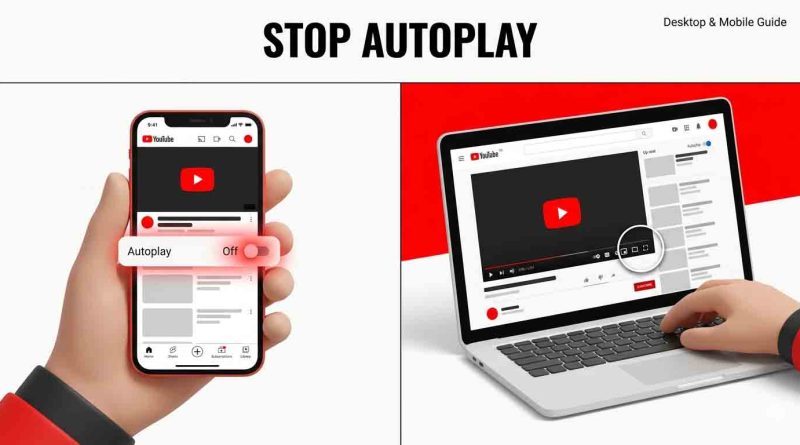
How to Stop Autoplay on YouTube
Is the video you just finished always followed by another one you never asked for? That is YouTube’s autoplay feature in action. While useful for playlists, it can drain your mobile data, lead to endless viewing sessions, and disrupt your focus. This guide will give you total control by showing you exactly how to stop autoplay on YouTube across every device you use.
By the end of this article, you will know how to permanently manage your YouTube autoplay settings, whether you are on a phone, computer, smart TV, or gaming console.
Why You Should Disable Autoplay
Before diving into the steps, let’s clarify why you might want to turn this feature off:
- Save Mobile Data: Autoplay automatically loads the next video, which consumes your cellular data plan without your permission.
- Take Control of Your Time: The “next video” countdown can easily lead to hours of unintended binge-watching. Disabling it allows you to be intentional about what you watch.
- Reduce Distractions: If you are using YouTube for a specific tutorial, study session, or white noise, you do not want the algorithm deciding what comes next.
How to Stop Autoplay on Desktop
If you are using a web browser on a Windows PC, Mac, or Chromebook, follow these steps for how to disable autoplay YouTube desktop settings.
- Open your preferred browser and go to YouTube.com.
- Play any video.
- Hover your mouse over the video player to reveal the playback controls.
- Look at the bottom right corner of the video screen. You will see several icons (settings, theater mode, full screen).
- Find the small toggle switch labeled “Autoplay.” It looks like a play button inside a circle with a small “next” arrow.
- Click this switch to turn it gray/Off (it is typically blue or white when active).
How to Turn Off Autoplay YouTube Mobile
For those watching on the go, stopping automatic videos is essential to preserve battery life and data. Here is how to turn off autoplay YouTube mobile for both iPhone and Android devices.
You have two ways to do this:
Option 1: From the Video Player (Quick Session Toggle)
- Open the YouTube app and start playing any video.
- Tap the screen once to bring up the playback controls.
- Look at the top of the video player (or bottom corner depending on your version).
- Tap the Autoplay toggle (the “play next” icon) to switch it Off.
- This stops the next video from playing automatically for that specific session.
Option 2: Through Account Settings (Permanent Fix)
If you want the setting to stick permanently for your logged-in account:
- Tap your Profile picture (top right or bottom right corner).
- Tap Settings (the gear icon).
- Tap Autoplay (On iOS this may be under Playback or Video playback).
- Toggle the Autoplay next video setting to Off.
How to Turn Off Autoplay on YouTube TV, PS5, and Xbox
Smart TVs, streaming sticks, and gaming consoles often hide their settings differently. Here is how to find the YouTube autoplay settings on large screens.
Most connected TV apps follow a similar logic:
- Launch the YouTube app on your TV or console.
- Navigate to the left sidebar menu and scroll down to Settings.
- Find the option labeled Autoplay.
- Select Off to prevent videos from playing one after another.
For gaming consoles like PlayStation and Xbox, simply open the YouTube app, go to Settings, and look for the Autoplay toggle under Playback preferences.
Understanding the YouTube Video Queue
To fully master your viewing experience, you need to understand the YouTube video queue. This queue is the list of videos lined up to play next.
- If Autoplay is ON: YouTube automatically adds recommended videos to the end of your queue.
- If Autoplay is OFF: Once your current video ends, the queue stops. You must manually select another video to continue.
By stopping YouTube from playing the next video, you are effectively telling the platform not to auto-populate this queue.
Additional Tips: Managing Feed Previews
Stopping the main video is one thing, but you might also want to stop YouTube from playing next video previews while you are scrolling your homepage.
To disable these silent, looping previews:
- Go to your Profile Picture > Settings.
- Look for Playback in feeds or General.
- Turn off Video previews or set it to Off/Wi-Fi only.
Read Also, Is YouTube Premium Worth It?
Troubleshooting: Autoplay Keeps Turning Back On
If you have followed these steps but the autoplay toggle resets, try these fixes:
- Check your account age: YouTube disables autoplay by default for users aged 13–17. If you are over 18 and it keeps turning on, check your Google Account settings. If you are under 18 and trying to turn it on, you may have restrictions.
- Clear Cache and Cookies: Sometimes browser data causes YouTube to “forget” your preferences. Clear your browser’s cache and cookies, then log in again.
- Browser Extensions: If you use extensions that modify YouTube (like ad blockers), try disabling them temporarily to see if they are overriding your selection.
For more detailed information on how these settings work, you can always refer to the official YouTube Help Center.
Frequently Asked Questions (FAQ)
Q: Does turning off autoplay on my iPhone also turn it off on my computer?
A: No. YouTube allows you to have different settings for different devices. You must disable autoplay YouTube desktop and mobile separately. You can turn it off on your phone while leaving it on for your PC.
Q: Will YouTube stop playing videos entirely if I turn autoplay off?
A: No. You will still be able to play videos normally. The only change is that once a video finishes, the screen will stop and wait for you to click the next video.
Q: Is there a way to stop autoplay on the Home feed (thumbnails)?
A: Yes. This is a separate setting called “Playback in feeds.” Go to Settings > General and toggle Playback in feeds to Off or “Wi-Fi only” to stop videos from playing as you scroll.
Q: Why is the “Autoplay” switch missing on my video player?
A: If the switch is missing, ensure you are not in full-screen mode. Exit full screen by pressing Esc (Esc) on a keyboard or swiping down on a mobile device. You may also need to tap the screen once to wake the controls.
Q: Does YouTube’s algorithm still affect me if Autoplay is off?
A: The algorithm still suggests videos in the “Up Next” sidebar, but it will not force them to play. You maintain the final say in what you watch. You can learn more about how the recommendation system works via Google Search Central’s guide to user-centric content.
Conclusion
Taking control of your YouTube experience is simple once you know where to look. Whether you want to save data, reduce distractions, or simply end your viewing session on your own terms, knowing how to stop autoplay on YouTube is an essential digital skill. Review the steps for your specific device (desktop, mobile, or TV) and enjoy a calmer, more intentional viewing experience today.