
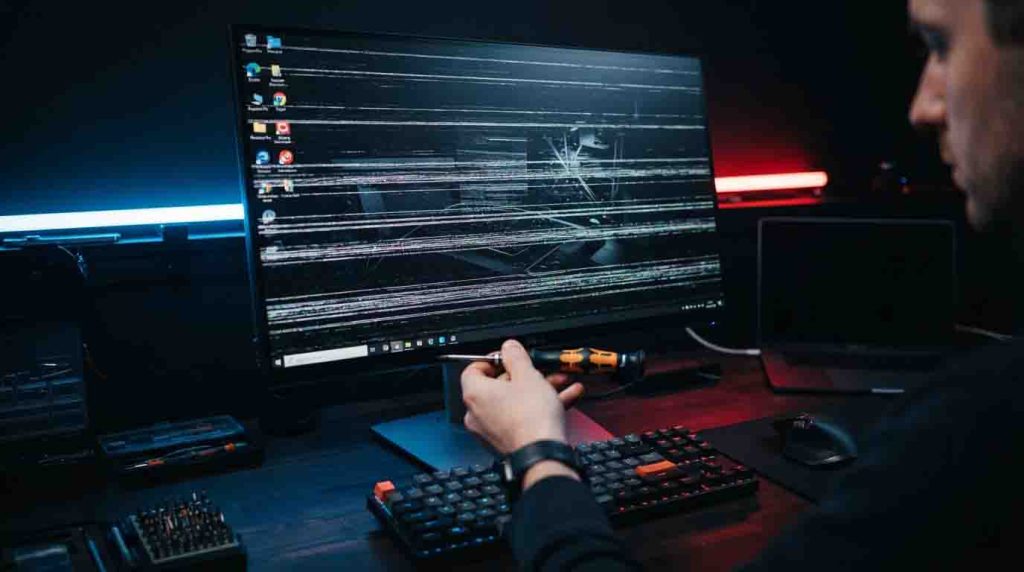
How to Fix Horizontal Lines on Computer Screen
Few things are more frustrating than sitting down to work or game, only to be greeted by a series of colored or black bars cutting across your display. These visual glitches are distracting, often making text unreadable and videos unwatchable. Whether they appear as static-colored stripes, flickering bands, or thin black lines, they usually signal a communication error between your PC and the display.
You don’t necessarily need to rush out and buy a new monitor. In many cases, the issue is software-related or caused by a simple connection issue. This guide will walk you through the process of how to fix horizontal lines on computer screen problems, starting with the easiest software checks and moving toward hardware diagnostics.
Quick Answer / Summary
- Check Cables First: Reseat or swap your HDMI, DisplayPort, or VGA cable. A loose or damaged cable is the #1 cause.
- Test Another Device: Plug a laptop or console into the monitor. If lines persist, the monitor is likely failing. If they vanish, the issue is your PC.
- Update Drivers: Outdated graphics drivers are a common culprit. Use Safe Mode to uninstall and reinstall them.
- Check Temperatures: Overheating GPU or VRAM can cause artifacts. Clean your fans and vents.
- Hardware Failure: If software fails, it could be a failing GPU or a damaged monitor panel.
Common Causes of Horizontal Lines on a Computer Screen
Before we dive into the fixes, it helps to understand what causes these display artifacts. Horizontal lines usually fall into two categories: signal interference or physical failure.
- Loose Monitor Cable: If the connection between your PC and monitor is weak, the signal drops, resulting in flickering or lines.
- Outdated Graphics Driver: Software conflicts can cause the GPU to render incorrectly.
- GPU Overheating: Excessive heat can damage the graphics card or cause it to malfunction temporarily.
- Refresh Rate Mismatch: If your monitor’s refresh rate is set incorrectly in Windows Display Settings or macOS display settings, it can cause visual instability.
- Monitor Hardware Failure: The internal ribbon cables or the panel itself (LCD/LED) may be failing.
- Graphics Card Issue: The GPU port or the card itself might be dying.
Quick Fixes to Try First
Try these rapid checks before spending time on deep software troubleshooting.
- Reseat the Cable: Unplug the HDMI, DisplayPort, or VGA cable from both the PC and the monitor. Blow out any dust and plug it back in firmly. Ensure screws on VGA/DVI cables are tight.
- Wiggle Test: Gently wiggle the cable near the ports. If the lines appear or disappear, you likely have a loose monitor cable or a bad port.
- Change the Input Source: If your monitor has multiple ports (e.g., HDMI 1 and HDMI 2), plug your PC into a different one using a different cable type if possible.
- Power Cycle: Turn off the PC and the monitor. Unplug the monitor from the wall for 60 seconds (this discharges capacitors). Plug it back in and restart.
How to Fix Horizontal Lines on Windows
If the hardware connections are solid, the issue is likely within the operating system. Windows updates or driver glitches can often trigger display issues.
1. Check Refresh Rate and Resolution
An incorrect refresh rate is a frequent cause of screen flickering and lines.
- Right-click your desktop and select Display Settings.
- Scroll down to Advanced display settings.
- Select your monitor and check Choose a refresh rate. Switch it to a different setting (e.g., from 144Hz to 60Hz). If the lines disappear, your cable might not support the higher bandwidth, or the monitor is struggling with that speed.
2. Update or Roll Back Graphics Drivers
This is the most critical software step. An outdated graphics driver or a corrupted installation can wreak havoc.
- Open Device Manager (Right-click Start > Device Manager).
- Expand Display adapters.
- Right-click your GPU (NVIDIA, AMD, or Intel) and select Update driver.
- If that fails: Select Uninstall device, restart your PC, and let Windows reinstall it. Alternatively, download the latest driver directly from NVIDIA, AMD, or Intel.
3. Use Safe Mode
If the lines appear even during boot, you need to check if it is a software conflict.
- Boot into Safe Mode (Hold Shift while clicking Restart > Troubleshoot > Advanced Options > Startup Settings).
- If the lines disappear in Safe Mode, a third-party app or driver is the culprit.
How to Fix Horizontal Lines on Mac
Mac users face similar issues, though the troubleshooting path is slightly different.
- Reset NVRAM/PRAM: Shut down your Mac. Press the power button and immediately hold Option + Command + P + R for about 20 seconds. This resets display settings stored in memory.
- Check macOS Display Settings: Go to System Settings > Displays. Try changing the resolution or refresh rate. If you are using an external monitor, ensure “High Dynamic Range” is off, as this sometimes causes artifacts on older cables.
- Apple Diagnostics: Restart your Mac and hold the D key. This runs hardware diagnostics to check for GPU or logic board failures. You can find more details on Apple Support.
Hardware Troubleshooting: Cables, Monitor, and GPU
If software fixes didn’t work, it’s time to isolate the failing component.
The External Monitor Test
This is the golden rule of troubleshooting.
- Scenario A: You plug your PC into a different monitor (or TV), and there are no lines. This means your PC and graphics card issue is fine. The problem is your original monitor.
- Scenario B: You plug a different device (like a laptop or console) into your monitor, and the lines are still there. This confirms a hardware failure in the monitor. If the lines are gone, your original PC is the problem.
Check the Monitor OSD (On-Screen Display)
Access the menu built into your monitor using the physical buttons on the bezel.
- If the monitor OSD menu (the settings menu) also has horizontal lines through it, the issue is 100% the monitor hardware.
- If the OSD is clean and crisp but the background image has lines, the issue is the signal coming from the PC.
GPU Overheating and Physical Checks
- Temperature Check: Use software like HWMonitor or MSI Afterburner to check your GPU overheating. If temps exceed 85°C under load, clean the dust from your case and GPU fans.
- Reseat the GPU: Open your case, remove the graphics card, and plug it back into the PCIe slot firmly. Ensure the power cables are connected securely.
- The Bake Trick (Last Resort): In some rare cases, reflowing the solder on a GPU (baking it in an oven) can fix display artifacts, but this is risky and usually a temporary fix. Proceed with extreme caution.
When to Repair vs. Replace
Deciding whether to fix or replace depends on the cost of the device.
| Component | Symptom | Recommendation |
|---|---|---|
| Cable | Flickering, lines that change when moved. | Replace. Cables are cheap ($10–$20). |
| Monitor | Lines appear on OSD menu and other devices. | Replace. Panel repairs usually cost 80% of a new monitor. |
| GPU | Artifacts appear on all monitors. | Repair/Replace. If under warranty, RMA it. If old, replace it. |
| Laptop Screen | Lines on built-in screen, but fine on external. | Repair. Replacing a laptop LCD is standard and cost-effective. |
Also Read: CMD Commands: Full List for Windows PC
FAQ
Why are there horizontal lines on my monitor?
The most common causes are a loose or damaged HDMI, DisplayPort, or VGA cable, an outdated graphics driver, or a failing monitor panel. Less commonly, it is a dying GPU.
Can a virus cause horizontal lines on my screen?
It is highly unlikely. While malware can cause graphical glitches, horizontal lines are almost always hardware (cables/panel) or driver-related.
How do I know if my monitor or GPU is bad?
Connect your PC to a TV. If the lines vanish, your GPU is fine, and the monitor is bad. If lines persist on the TV, your GPU is the issue.
Do horizontal lines mean my monitor is dying?
Not always. If caused by a cable or driver, it is fixable. However, if the lines are permanent and appear on the monitor’s built-in menu, the panel is dying.
Can overheating cause screen lines?
Yes. GPU overheating can cause the graphics card to send corrupted signals, resulting in display artifacts and lines.
Conclusion
Dealing with display issues is a process of elimination. Start by checking the simplest culprits—the cables and connections—before moving on to software drivers and hardware diagnostics. By following this guide, you can confidently diagnose the source of the problem and determine if you need a simple cable swap or a hardware replacement.
Knowing how to fix horizontal lines on computer screen issues saves you time and money, preventing you from buying a new monitor when the fix was just a $10 cable. If you’ve exhausted these steps and the lines persist, it may be time to consult a professional technician or consider replacing the failing component.