
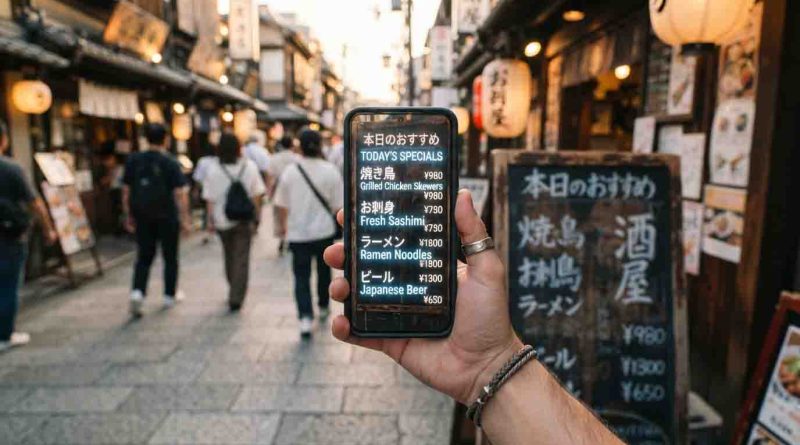
How to Use Google Translate Camera for Instant Visual Translation
You’re standing in a bustling Tokyo ramen shop, stomach growling, surrounded by a wall of Japanese characters you can’t decipher. Or perhaps you’re navigating a Prague train station, squinting at departure boards in Czech, praying you board the right train. For travelers, students, expats, and business professionals alike, foreign text is one of the most persistent barriers to seamless global experiences.
The solution is remarkably simple and fits in your pocket. Google Translate’s camera feature—powered by advanced optical character recognition (OCR) and Google Lens integration—transforms your smartphone into a real-time translation device. Point, shoot, and watch foreign text morph into your native language before your eyes. Whether you’re decoding a French wine list, reading a Japanese street sign, or scanning a German business document, knowing how to use Google Translate camera can turn confusion into clarity in seconds. This guide walks you through everything you need to know to master this indispensable tool.
What Is Google Translate Camera Translation?
At its core, the camera translation feature uses optical character recognition (OCR) to detect and read text from images captured by your phone’s camera. The app then processes that text through Google’s neural machine translation engine and displays the translated result directly on your screen—often in real time.
What makes this feature extraordinary is its augmented reality translation capability. Rather than simply showing you a translated block of text, the app overlays the translation directly onto the original text, effectively “replacing” the foreign words with ones you can understand. This Google Lens integration creates a seamless visual experience that feels almost magical.
The technology supports an impressive range of languages—instant camera translation works with 94 languages, while photo-based translation (where you capture and import an image) supports 90 languages. For text translation, the app handles over 200 languages.
Step-by-Step Guide: How to Use Google Translate Camera
Let’s walk through exactly how to use Google Translate camera on both iOS and Android devices.
Step 1: Download the Google Translate App
The Google Translate app is available for free on both the Google Play Store for Android devices and the Apple App Store for iPhones and iPads. Search for “Google Translate” and tap Install.
Device requirement: To translate images with your camera in all supported languages, your device must have an auto-focus camera and a dual-core CPU with ARMv7 architecture. Most modern smartphones meet this specification.
Step 2: Grant Camera Permissions
When you first open the app, Google Translate will request permission to access your device’s camera. This is essential for the feature to work. Tap “Allow” or “Grant” when prompted.
Troubleshooting tip: If you accidentally denied the permission, you can manually enable it by going to your phone’s Settings > Apps > Google Translate > Permissions > Camera > Allow.
Step 3: Set Your Language Preferences
At the bottom of the screen, you’ll see two language selectors:
- Left side (Source language): The language of the text you want to translate. You can either select a specific language or tap “Detect language” to let the app automatically identify it.
- Right side (Target language): The language you want the text translated into.
For most users, setting the source to “Detect language” and the target to your native tongue is the most efficient setup.
Step 4: Tap the Camera Icon
Look for the camera icon at the bottom of the screen and tap it. This launches the camera viewfinder and activates Google Lens integration.
Step 5: Point, Focus, and Translate
Hold your smartphone steady and point the camera at the text you want to translate. The app will automatically detect any text in the frame and begin translating it in real time. The translated text appears as an overlay directly on your screen.
For best results: Position the text so it fills approximately 70-90% of the viewfinder. Hold the phone steady for 1-3 seconds to allow the app to focus and process the text.
Step 6: Capture and Interact
When you’re satisfied with the translation, you can:
- Tap the shutter button to freeze the image and examine the translation more carefully
- Drag the translation card upward if the text is too long to view fully
- Tap individual words to select specific text and see additional options
- Copy translated text, listen to pronunciation, or search for more information using the options at the bottom of the screen
And that’s the basic process for how to use Google Translate camera. Simple, fast, and incredibly effective.
Pro Tips for Accuracy
Getting the most out of this feature requires more than just pointing and hoping. Here are advanced techniques to ensure accurate translations every time.
Master the Two Modes: Scan vs. Instant
Google Translate’s camera feature offers two distinct modes:
Instant Mode (Live Translation): This is the default setting. The app continuously processes the camera feed and updates translations in real time as you move the phone. It’s ideal for quick glances at menus, signs, and labels.
Scan Mode (Photo Translation): Tap the shutter button to freeze a single image. The app then processes that specific frame for higher-quality translation. This mode works better for longer texts, documents, and situations where you need a more stable view.
Pro tip: For documents, use Scan mode rather than Instant mode. The higher image quality yields more accurate OCR results.
Optimize Lighting and Focus
The accuracy of optical character recognition depends heavily on image quality. Follow these guidelines:
- Ensure adequate lighting—natural daylight is ideal, but the flash can help in dim conditions
- Avoid glare from glass, laminated menus, or glossy packaging
- Clean your camera lens—a smudged lens ruins image clarity
- Keep your hands steady—excessive shaking causes text to jump around and results to become unreliable
Select Specific Text
Sometimes you only need a portion of what’s on the screen translated. You can highlight specific text by dragging selection anchors across the words you want. This is particularly useful for long documents or signs where only a section is relevant.
Use “Detect Language” for Mixed Content
If you’re traveling through multilingual regions or scanning texts in unknown languages, always select “Detect language” as the source. The app will automatically identify the language and translate it accordingly.
Offline Usage: Translation Without Internet
Internet connectivity isn’t always available when you need it most—on planes, in subways, or in remote destinations. Fortunately, Google Translate allows you to download language packs for offline use.
How to Download Offline Language Packs
Step 1: Connect to a Wi-Fi network before downloading (language files typically range from 30 MB to 150 MB each).
Step 2: Open the Google Translate app.
Step 3: At the bottom, select the language you want to download.
Step 4: Next to the language name, tap the Download icon.
Step 5: Wait for the download to complete. The language will then appear as “Downloaded” in the app.
Offline Camera Translation: What Works and What Doesn’t
Here’s the critical distinction: When you download a language pack, you can translate text from captured images offline. However, the live camera feed translation (Instant mode) requires an internet connection.
In practical terms:
- Offline: You can take a photo (tap the shutter button) and get a translation
- Online: You get real-time, augmented reality overlay translation as you move the camera
Pro tip: Download language packs for both the source and target languages before your trip. The app allows you to download both simultaneously by leaving the “Translate offline” checkbox checked.
Supported Offline Languages
The app supports offline translation for 59 languages, including major global languages like Spanish, French, German, Chinese (Simplified and Traditional), Japanese, Korean, Arabic, Russian, Italian, and Portuguese.
Also Read: Wi-Fi on No Internet Connection? Here’s the Ultimate 2026 Fix Guide
Troubleshooting Common Issues
Even the best technology encounters hiccups. Here’s how to resolve the most common problems with Google Translate’s camera feature.
Poor Lighting or Blurry Images
Problem: The app can’t detect text or produces garbled translations.
Solutions:
- Move to a better-lit area or use your phone’s flashlight
- Wipe your camera lens with a soft cloth
- Hold the phone steadier and allow 1-3 seconds for focus
- For small text, move the camera closer—but ensure the text fills most of the frame
Unsupported Languages
Problem: The camera feature doesn’t work for a particular language.
Check: Not all languages support camera translation. The feature works with 94 languages for instant camera translation and 90 for photo-based translation. For a full list of supported languages, refer to Google’s official language support page.
Alternative: If camera translation isn’t supported, try typing the text manually or using the handwriting input feature.
Camera Button Grayed Out or “Lens Not Available”
Problem: The camera icon is inactive, or you see a “Lens is not available” error.
Solutions:
- Grant camera permissions: Go to Settings > Apps > Google Translate > Permissions and enable Camera
- Install or update Google app: The camera feature depends on Google services; ensure the Google app is installed and updated
- Clear app cache: Go to Settings > Apps > Google Translate > Storage > Clear Cache
- Clear app data: If cache clearing doesn’t work, try Clear Data (note: this will reset your settings)
- Update the app: Ensure you’re running the latest version from the Play Store or App Store
- Check network connection: The intelligent lens feature requires network access for live translation
Incorrect Language Translation
Problem: The app translates into the wrong language or detects the wrong source language.
Solutions:
- Manually select the source language instead of using “Detect language”
- Verify your target language is correctly set at the bottom right
- Clear the app cache and restart
Frequently Asked Questions
Is Google Translate’s camera feature free?
Yes, completely free. Google Translate is a free service with no hidden charges. The app is available at no cost on both iOS and Android platforms. There are no premium tiers or paywalls for camera translation, offline packs, or any other core feature.
Does the camera translation work with Chinese characters?
Yes. Google Translate’s camera feature supports both Simplified and Traditional Chinese. The OCR technology is highly effective at recognizing Chinese characters, and the translations are generally accurate for everyday use. For complex or specialized texts, results may vary, but for menus, signs, and basic documents, it works exceptionally well.
Do I need an internet connection for camera translation?
It depends on the mode. For real-time live translation with augmented reality overlay, you need an active internet connection. However, if you download the appropriate language packs beforehand, you can translate captured images (photos) offline. This makes the feature invaluable for international travel where data connectivity is unreliable.
How accurate is Google Translate camera translation?
Accuracy varies based on several factors: text clarity, lighting, font style, and language pair. For clear, printed text in well-lit conditions, the translation is generally reliable for getting the gist of menus, signs, and short documents. However, translations can be somewhat literal, and the exact nuance may occasionally be lost. For critical documents, always verify with a human translator. This is an essential consideration when learning how to use Google Translate camera effectively.
Conclusion
The Google Translate camera feature represents one of the most practical applications of modern AI and optical character recognition technology. What once required phrasebooks, dictionaries, and patient pointing at menus can now be accomplished in seconds with a smartphone.
Whether you’re a traveler navigating foreign streets, a student deciphering academic texts, an expat settling into a new country, or a business professional reviewing international documents, mastering how to use Google Translate camera unlocks a world of understanding. The combination of real-time translation, offline capabilities, and Google Lens integration makes this tool indispensable for anyone who encounters foreign text.
Your next step: Download the Google Translate app from the Play Store or App Store today. Before your next trip, download the offline language packs for your destination. And the next time you’re staring at an indecipherable sign or menu, remember—the answer is already in your pocket.