
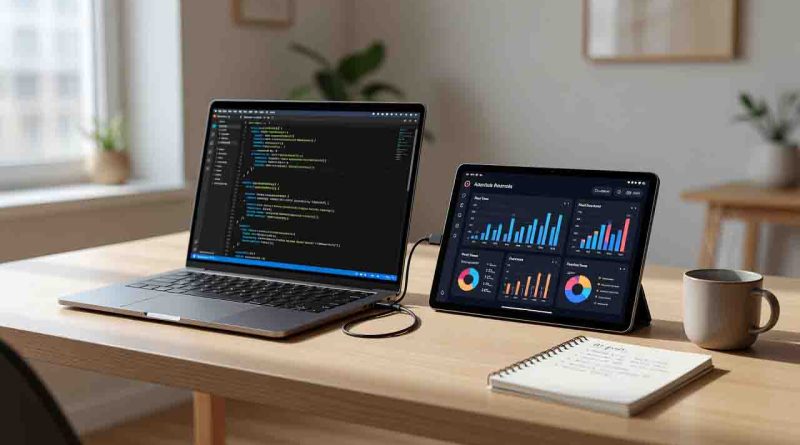
How to Turn Your Android Tablet Into a Second Monitor
You’re deep in a coding sprint, juggling a terminal, a browser with documentation, and your IDE. Or perhaps you’re a digital nomad parked at a café, trying to design a presentation on a single 13-inch screen while referencing research in another window. The bottleneck isn’t your skill—it’s screen real estate. We’ve all been there.
The obvious solution is a portable monitor, but decent ones cost anywhere from $100 to $200—more if you want touch support. That’s a significant chunk of change for a peripheral that adds bulk to your bag.
Here’s a smarter move: turn your Android tablet into a second monitor. That device you already own—whether it’s gathering dust or your daily driver—can become a fully functional portable secondary display for your Windows PC or Mac. This guide walks you through the three primary connection methods: Wi-Fi (Miracast), USB-C (wired), and third-party apps like SuperDisplay and Spacedesk. By the end, you’ll have a productivity workstation setup that’s lighter on your wallet and your backpack.
Wired vs. Wireless Setup: Which is Best for You?
Before diving into the step-by-step guides, let’s settle the most critical debate: should you go wired or wireless? The choice impacts everything from latency to battery life.
The Verdict: For most professionals, wired is superior. The low-latency screen mirroring and stable connection are non-negotiable for serious work. Use wireless for quick, on-the-go setups where convenience trumps performance.
Step-by-Step Setup Guides (Top 3 Methods)
Using Built-in Windows “Project” & Miracast (Wireless)
This method uses Miracast, a wireless display standard built into Windows. It’s the quickest way to get started without installing anything.
- On your Android tablet: Swipe down twice to open Quick Settings. Look for “Wireless Display” or “Second Screen” (Samsung tablets) and tap it. Your tablet will start searching for devices.
- On your Windows PC: Press the Windows key + K simultaneously. This opens the “Connect” panel.
- Select your tablet from the list of available devices. Your PC will attempt to connect.
- Once connected, press Windows key + P and select “Extend” to use your android tablet as second monitor. You can now drag windows onto it.
- Finalize: Go to Settings > System > Display and drag the monitor icons to match the physical arrangement of your laptop and tablet.
Pro Tip: This method works best on a 5GHz Wi-Fi network to minimize interference.
Using USB-C for a Zero-Lag Experience (Wired)
This is the holy grail for professionals. A physical USB-C connection offers the most stable and responsive experience. Note that this typically requires a third-party app (covered in Method 3) because Windows doesn’t natively recognize Android tablets as displays over USB.
However, some newer tablets (like the Acer Iconia Duo S14) feature “Two-Way Display” technology that sends video out and pulls it in over USB-C and DisplayPort, acting like a native monitor.
For a general wired setup using apps like SuperDisplay:
- Install the Software: Download and install the Windows driver for your chosen app (e.g., SuperDisplay).
- Enable USB Debugging (for some apps): On your tablet, go to Settings > About Tablet and tap “Build Number” seven times to unlock Developer Options. Then go to Developer Options and enable USB Debugging.
- Connect the Cable: Use a high-quality USB-C cable that supports data transfer (not just charging). Connect your tablet to your PC.
- Launch the App: Open the companion app on your tablet. It should detect the USB connection automatically.
- Configure Display: On your PC, go to Display Settings and ensure the tablet is set to “Extend these displays.”
Configuring Third-Party Apps (e.g., SuperDisplay, Duet Display, or Spacedesk)
Third-party apps are the most versatile and feature-rich way to use your android tablet as second monitor. They offer the best balance of performance, features, and compatibility.
Here’s a breakdown of the top contenders:
- Spacedesk (Free): The go-to free option. It turns your tablet into a wireless or USB display. It’s incredibly easy to set up—install the driver on your PC, install the viewer app on your tablet, and they find each other automatically. Ideal for office work and light gaming.
- SuperDisplay (Paid, ~$15): The premium choice for Windows users. It’s designed specifically for Android and offers exceptional USB performance with support for 60 FPS and stylus pressure sensitivity. Perfect for digital artists and anyone who needs the lowest possible latency.
- Duet Display (Paid, ~$10): A veteran in this space, known for its rock-solid stability across both Windows and macOS. It’s an excellent cross-platform solution.
How to set up Spacedesk (The Free Champion) :
- On your PC: Go to the Spacedesk website and download the Windows Driver for your version of Windows. Install it.
- On your Tablet: Download the Spacedesk Viewer app from the Google Play Store.
- Connect: Ensure both devices are on the same Wi-Fi network (or connect via USB tethering). Open the viewer app on your tablet. Your PC should appear in the list automatically. Tap to connect.
- Extend: On your PC, press Windows key + P and select “Extend.” You’re now ready to go.
Expert Tips to Optimize Your Android Tablet as a Second Monitor
Getting connected is just the first step. To truly transform your android tablet as second monitor into a seamless extension of your workspace, apply these expert optimizations.
- Refresh Rate & Frame Rate: For a smooth experience, aim for 60 FPS. In apps like Spacedesk or SuperDisplay, you can manually set the frame rate to 60Hz. This dramatically reduces perceived lag and makes cursor movement feel fluid.
- Resolution Scaling: Your tablet’s resolution is likely different from your main monitor. In Windows Display Settings, select your tablet and adjust the “Scale” (e.g., 125% or 150%) so that text and icons are comfortably sized. Don’t just match the resolution; scale it for usability.
- Stylus Support for Designers: If you’re a designer, SuperDisplay is your best friend. It supports full stylus pressure sensitivity, turning your tablet into a professional-grade drawing tablet. For Samsung Galaxy Tab users, the built-in “Second Screen” feature also supports S Pen input.
- Positioning is Key: In Windows Display Settings, drag the virtual monitor icon to match the physical position of your tablet on your desk. If your tablet is to the right of your laptop, drag the monitor to the right. This ensures your mouse flows naturally between screens.
- Disable Unnecessary Visual Effects: On your PC, go to System Properties > Advanced > Performance Settings and select “Adjust for best performance.” This can free up resources and reduce the load on your GPU when streaming the display.
Also Read: Wi-Fi on No Internet Connection? Here’s the Ultimate Fix
The Best Android Tablets for Dual-Monitor Use
Not all tablets are created equal. Here are the top contenders for creating a productivity workstation setup, based on screen size, resolution, and battery life.
- Premium Pick: Lenovo Tab P12 Pro
- Screen: 12.6-inch 2K AMOLED display (2560×1600).
- Refresh Rate: 60Hz.
- Battery: All-day battery life.
- Why it’s great: This tablet doubles as a wireless 2K AMOLED secondary display with touch and pen input support via Lenovo Project Unity. The high-resolution AMOLED panel makes colors pop, which is fantastic for photo and video editing.
- Best Value: Lenovo Idea Tab
- Screen: 11-inch 2.5K IPS display.
- Refresh Rate: 90Hz.
- Battery: 7,040 mAh rated for over 10 hours of mixed use.
- Why it’s great: At a price point that frequently drops to around $179, it’s an unbeatable budget option for students and remote workers. The high refresh rate makes for a fluid secondary display.
- Creator’s Choice: Acer Iconia Duo S14
- Screen: 14.2-inch 2.8K OLED display.
- Refresh Rate: 120Hz.
- Why it’s great: Built for creative professionals, its massive OLED screen offers excellent color accuracy. The “Two-Way Display” feature allows it to function as a native portable monitor over USB-C.
- The Ecosystem Champion: Samsung Galaxy Tab S9 Series
- Screen: 11-inch to 14.6-inch Dynamic AMOLED 2X.
- Refresh Rate: 120Hz.
- Why it’s great: If you’re in the Samsung ecosystem, the built-in “Second Screen” feature is seamless. It works wirelessly with Windows PCs and offers the lowest friction setup for Samsung users.
Troubleshooting Common Latency & Connection Issues
Even the best setups can hit snags. Here’s how to fix the most common problems.
- “My tablet isn’t showing up in the app/Windows.”
- “The latency is terrible. Mouse movement is laggy.”
- Fix 1: This is the #1 complaint. Switch from Wi-Fi to a USB cable connection if your app supports it.
- Fix 2: If you must use Wi-Fi, ensure you’re connected to a 5GHz network, not 2.4GHz. The 5GHz band has less interference and higher bandwidth.
- Fix 3: In the app’s settings on your tablet, lower the resolution or switch to a “Performance” mode. You can also try limiting the frame rate to 30 FPS to reduce bandwidth pressure.
- “The screen resolution looks wrong or is cut off.”
- “My tablet isn’t charging while connected via USB.”
- Fix: Not all USB-C cables support power delivery. Ensure you’re using a cable that can handle both data and power. Also, plug the USB-C cable directly into your PC’s USB-C port (not a USB-A adapter) for the best power delivery.
Turning your android tablet as second monitor is one of the smartest productivity hacks you can make. It’s a cost-effective, portable, and highly functional upgrade that can instantly transform your workflow. Whether you choose the simplicity of Miracast, the speed of a USB-C wired connection, or the feature-rich experience of a third-party app, you have everything you need to get started today.
Resources & Further Reading
- For a deep dive into display latency metrics, check out the benchmarks on AnandTech.
- For official guidance on configuring multiple displays, visit the Microsoft Support page on Windows display settings.
- To understand the technical specifications of USB-C video output, refer to the Android Developers documentation on USB-C and DisplayPort Alternate Mode.