
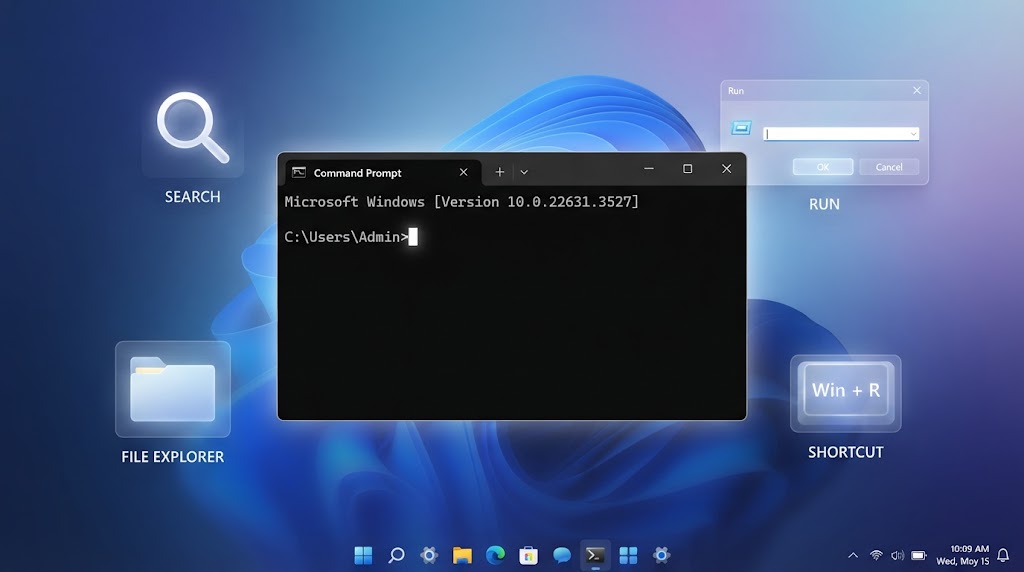
How to Open a Command Prompt on Windows: A Complete Beginner’s Guide
If you’ve ever followed a troubleshooting guide or tried to run a network diagnostic, you’ve likely been told to “open Command Prompt.” For many Windows users, that single instruction can feel like a roadblock. The good news? Learning how to open a command prompt is simple, and there are at least eight different ways to do it depending on your version of Windows and what you need to accomplish. This guide walks you through every reliable method on Windows 10 and Windows 11, explains the difference between standard and administrator mode, and helps you avoid common pitfalls.
Whether you’re a beginner who wants to run a quick ipconfig check or an intermediate user automating tasks with batch files, this article gives you clear, tested steps. Let’s dive in.
What Is Command Prompt (and Why Open It?)
Command Prompt—often called cmd or cmd.exe—is Windows’ built-in command-line interpreter. It lets you type text commands to perform tasks that would otherwise require clicking through multiple menus. Common uses include:
- Running network diagnostics (
ping,ipconfig,tracert) - Managing files and folders without a graphical interface
- Executing batch scripts (
.batfiles) - Troubleshooting system errors
- Accessing advanced administrative tools
It’s not a tool you’ll use every day, but when you need it, knowing how to launch it quickly saves time and frustration.
Standard vs. Administrator Mode: Which One Do You Need?
Before we cover the methods, it’s important to understand the two permission levels:
- Standard mode: Runs with your normal user privileges. Fine for most everyday commands.
- Administrator mode: Runs with elevated privileges, allowing system-level changes. Required for commands like
sfc /scannow,chkdsk, or modifying protected system files.
If a guide says “open Command Prompt as administrator,” you must use one of the admin-specific methods below. Otherwise, you’ll see “Access Denied” errors.
Method 1: Open Command Prompt with Windows Search
This is the fastest method for most users and works identically on Windows 10 and Windows 11.
- Press the Windows key on your keyboard (or click the Start button).
- Type cmd or Command Prompt.
- In the search results, click Command Prompt.
- To run as admin, right-click the result and choose Run as administrator.
Tip: On Windows 11, you can also click the search icon on the taskbar and type “cmd.”
This method is ideal when you just need to open a command prompt quickly without hunting through menus.
Method 2: Use the Run Dialog (Fastest Keyboard Method)
The Run dialog is a power-user favorite because it takes just three seconds.
- Press Windows key + R to open the Run box.
- Type cmd.
- Press Enter or click OK.
To open an elevated prompt:
- Press Windows key + R.
- Type cmd.
- Press Ctrl + Shift + Enter instead of Enter.
- Click Yes on the User Account Control (UAC) prompt.
This is one of the most efficient keyboard shortcuts for launching cmd.
Method 3: Open Command Prompt from the Start Menu
If you prefer navigating menus, the Start menu works well.
On Windows 10:
- Click Start.
- Scroll to Windows System folder.
- Click Command Prompt.
On Windows 11:
- Click Start.
- Click All apps.
- Scroll to Windows Tools and open it.
- Double-click Command Prompt.
For admin mode, right-click and select Run as administrator.
Method 4: Launch Command Prompt from File Explorer
This method is handy when you’re already browsing folders and want to open cmd in that exact location.
- Open File Explorer.
- Click the address bar at the top.
- Type cmd and press Enter.
The Command Prompt opens with the current folder as its working directory. This is a huge time-saver for developers and IT pros.
Note: This opens a standard prompt. For admin mode, you’ll need to use one of the right-click methods below.
Method 5: Use the File Explorer Right-Click Context Menu
- Open File Explorer and navigate to any folder.
- Hold Shift and right-click on an empty area.
- Select Open PowerShell window here or Open in Terminal (Windows 11).
- Once open, type cmd and press Enter to switch to Command Prompt.
On Windows 11, the context menu may show Open in Terminal, which launches Windows Terminal—a modern host that can run cmd, PowerShell, and other shells in tabs.
Method 6: Open Command Prompt via Task Manager
This is a useful fallback if your Start menu or search isn’t working.
- Press Ctrl + Shift + Esc to open Task Manager.
- Click File (or the three-dot menu on Windows 11).
- Select Run new task.
- Type cmd.
- Check Create this task with administrative privileges if needed.
- Click OK.
This method is especially helpful when Explorer.exe has crashed.
Method 7: Use Windows Terminal (Modern Alternative)
Windows Terminal is Microsoft’s modern terminal app that hosts Command Prompt, PowerShell, and WSL shells in one window.
- Press Windows key and type Windows Terminal.
- Click to open it.
- Click the dropdown arrow next to the tab bar.
- Select Command Prompt.
You can also set Command Prompt as the default profile in Windows Terminal settings. This is the recommended approach for Windows 11 users who want a future-proof setup.
Also Read CMD Commands: Full List for Windows PC
Method 8: Keyboard Shortcut for Admin Mode
There’s no single universal shortcut, but this combo works from anywhere:
- Press Ctrl + Shift + Esc (Task Manager).
- Follow Method 6 above.
Alternatively, pin Command Prompt to your taskbar, then hold Ctrl + Shift and click the icon to launch as administrator.
Troubleshooting: What If Command Prompt Won’t Open?
Sometimes things go wrong. Here are quick fixes:
- “Command Prompt has been disabled by your administrator”: Check Group Policy or registry settings. In Regedit, navigate to
HKEY_CURRENT_USER\Software\Policies\Microsoft\Windows\Systemand setDisableCMDto 0. - UAC prompt doesn’t appear: Ensure your user account has admin rights.
- Search doesn’t find cmd: Rebuild the search index via Settings > Privacy & security > Searching Windows.
- Windows Terminal opens instead of cmd: This is normal on Windows 11. Just type
cmdinside Terminal.
For official guidance, see Microsoft’s Command Prompt documentation.
Frequently Asked Questions
Q: Is Command Prompt the same as PowerShell?
A: No. PowerShell is a more advanced shell with scripting capabilities. However, you can run cmd inside PowerShell by typing cmd.
Q: Can I open Command Prompt on Mac or Linux?
A: Mac has Terminal, and Linux has various shells like Bash. The concept is similar, but commands differ.
Q: How do I close Command Prompt?
A: Type exit and press Enter, or click the X button.
Q: Why does my Command Prompt look different?
A: Windows Terminal and older console hosts have different appearances. Functionality is the same.
Q: Do I need admin mode for ipconfig?
A: No, standard mode works for ipconfig. Admin mode is only needed for system-changing commands.
For more on Windows command-line tools, visit the Microsoft Windows Command Line blog.
Conclusion
Knowing how to open a command prompt is a foundational Windows skill that pays off every time you troubleshoot, automate, or dig deeper into your system. Whether you prefer the speed of the Run dialog, the convenience of File Explorer, or the modern flexibility of Windows Terminal, you now have eight reliable methods at your fingertips. Remember to use administrator mode only when necessary, and don’t be afraid to explore—cmd is a powerful tool, but it’s also forgiving if you stick to safe commands. Bookmark this guide, practice the methods, and you’ll never be stuck at “open Command Prompt” again.