
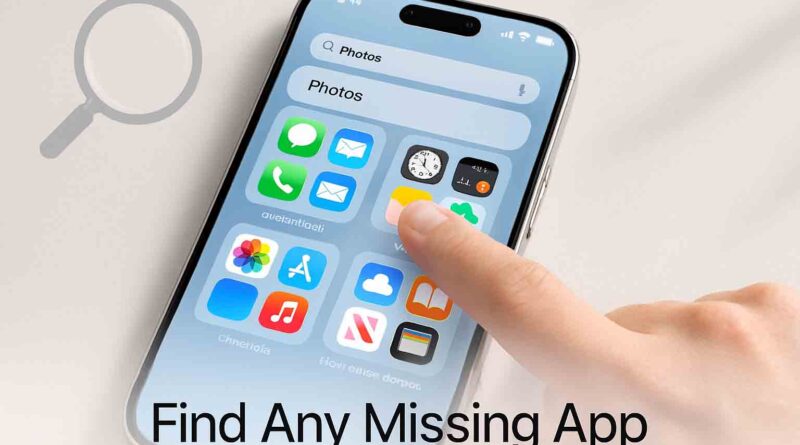
How to Unhide an App on iPhone
If you need to learn how to unhide an app on iPhone, you’re in the right place. An app vanishing from your iPhone is a common but solvable problem—it’s almost certainly still on your device, just hidden from view. This definitive guide covers every method to find and restore your apps, whether they’re lost on a cluttered Home Screen, tucked away in your App Library, hidden from your purchase history, or restricted by parental controls.
Method 1: Find a Missing App on Your Home Screen or App Library
This is the most common scenario. Your app isn’t gone; it’s simply not on your current Home Screen page. Here’s how to find it.
Using App Library Search
The App Library, introduced in iOS 14, is an automatic, organized list of every single app installed on your iPhone.
- Swipe left on your Home Screen until you pass your last page of apps. You will now see the App Library.
- At the top of the App Library screen, you will see a search bar. Tap it.
- Type the name of the missing app. If it’s installed, it will appear in the search results.
- To add it back to your Home Screen, press and hold its icon, then tap “Add to Home Screen.”
Pro Tip: You can also access this search function by swiping down from the middle of any Home Screen page.
Reviewing All Home Screen Pages
You may have accidentally moved the app to a different page or folder.
- Enter “jiggle mode” by pressing and holding an empty area on your Home Screen until the icons start to move.
- Look at the row of dots near the bottom of your screen. Each dot represents a Home Screen page.
- Tap on these dots to see a zoomed-out view of all your pages. Scroll through to see if your app is on a different page.
- Also, check inside any folders on each page.
Adding an App from App Library to Home Screen
Once you’ve located the app in the App Library (using search or by browsing the categorized folders), you can return it to your Home Screen.
- In the App Library, press and hold the app’s icon.
- From the menu that appears, select “Add to Home Screen.”
- The app icon will be placed on your primary Home Screen. You can then press, hold, and drag it to your preferred location.
Using Spotlight Search
- From any Home Screen, swipe down and type the app name.
- If Spotlight finds it, press and hold the result and choose Show in App Library or Open.
Pro tip: If an app is offloaded (icon removed but data kept), reinstall by tapping its icon in App Library or via the App Store; offloaded apps show a cloud icon.
Method 2: Unhide App Store Purchases
If you can’t find an app to re-download from the App Store because it shows a price instead of a cloud icon, you may have hidden it from your purchase history. This is a separate action from hiding an app on your Home Screen.
[Screenshot Suggestion: The App Store account page, scrolled down to show the “Hidden Purchases” option.]
Viewing and Restoring Hidden Purchases
Hiding a purchase removes it from your main purchased list, often to declutter or for privacy within Family Sharing. Here’s how to undo that:
- Open the App Store app on your iPhone.
- Tap your profile picture or initials in the top right corner.
- At the top of the menu, tap your name or Apple ID. You might need to authenticate.
- Scroll down the Account page until you see the “Hidden Purchases” option and tap it.
- You will see a list of all apps you’ve chosen to hide. Find the app you want and tap the “Unhide” button next to it.
- Once unhidden, you can return to the app’s page in the App Store, where you should now see a cloud download icon to reinstall it for free.
Method 3: Disable App Restrictions via Screen Time
If an app is completely missing or won’t open, and you (or a family member) use Screen Time, it may be blocked by Content & Privacy Restrictions. This is common in parental control setups or after iOS updates, which can sometimes reset or tighten these settings.
Checking for and Turning Off App Restrictions
These restrictions can hide built-in Apple apps (like Camera or Mail) or block third-party apps based on age ratings.
- Open the Settings app and tap “Screen Time.”
- If you are part of a Family Sharing group, tap your family member’s name under the “Family” section. If managing your own phone, proceed to the next step.
- Tap “Content & Privacy Restrictions.” You will likely need to enter your Screen Time passcode.
- First, check “Allowed Apps & Features.” If the missing app is a built-in Apple app, ensure its toggle is switched ON (green). If it’s off, the app is hidden from your Home Screen.
- Next, go back and tap “App Store, Media, Web, & Games” then tap “Apps.” Here, you can set an age restriction (e.g., 4+, 9+, 12+, 17+). If your missing app has a higher age rating than the setting here, it will be hidden. Adjust this setting to “Allow All Apps” or a higher age rating to restore access.
Important Note: If you are a child in a Family Sharing group, you will need to ask your parent or guardian to enter the Screen Time passcode to change these settings.
Also Read, How to Make an Apple Genius Bar Appointment
Why Did My iPhone App Disappear? (Common Causes)
Understanding why it happened can prevent it in the future. Here are the most likely reasons:
- Accidental Action: You (or someone else) pressed and held the app and selected “Remove from Home Screen” or dragged it to a different page or folder.
- iOS Update or Glitch: Occasionally, an iOS update can reset Home Screen layouts or cause temporary glitches where apps seem to vanish. A simple restart of your iPhone can often resolve this.
- Automatic Offloading: If you have “Offload Unused Apps” enabled (Settings > App Store), your iPhone may automatically remove apps you haven’t used in a while to save space but keep their data. The icon will remain with a small cloud symbol, indicating it can be re-downloaded.
- Parental Controls: As detailed in Method 3, screen time restrictions are a very common cause, especially for families.
- Intentional Hiding: You may have intentionally hidden the app using the “Hide App” feature, which requires Face ID/Touch ID and moves it to a special, authenticated folder at the bottom of your App Library. You can manage these in Settings > Apps > Hidden Apps.
Frequently Asked Questions (FAQs)
Q: I hid an app using the ‘Hide App’ feature. How do I find it again?
A: Apps hidden this way are moved to a secure, authenticated folder in the App Library. Swipe to your App Library and scroll all the way to the bottom. Tap the “Hidden” folder, authenticate with Face ID, Touch ID, or your passcode, and you’ll see all your hidden apps there. To unhide one, press and hold it and select “Don’t Require Face ID.”
Q: What’s the difference between “Offload” and “Hide”?
A: Offloading removes the app’s software to free up storage but keeps its documents and data. The app icon remains on your Home Screen with a small cloud icon. Hiding (from the Home Screen) keeps the app fully installed but moves its icon out of sight. Hiding a purchase in the App Store only affects its visibility in your purchase list.
Q: Can I permanently unhide an app so it doesn’t hide again?
A: Yes. For Home Screen hiding, once you move it back, it will stay unless you hide it again. For purchased apps, selecting “Unhide” in your App Store purchases restores it permanently to your purchase list. For Screen Time restrictions, changing the setting to “Allow” will permanently allow the app until you change the restriction again.
Q: Why did my apps disappear right after an iOS update?
A: This is often related to Screen Time and age restrictions. Newer iOS versions sometimes enforce age ratings more strictly. If an app is rated 17+ but your Screen Time restriction is set to 12+, the update may cause the app to hide. Follow Method 3 to adjust your Content & Privacy Restrictions.
Q: I can’t find the “Hidden Purchases” option in my App Store. Where is it?
A: It’s not in your iPhone’s main settings. You must open the App Store app, go to your account page (tap your profile icon), and then tap your name at the top of that menu to access the full account settings where “Hidden Purchases” is listed.
Final Summary
To recover a missing app, follow this decision path:
- First, search in your App Library—this solves most cases.
- If you want to re-download it but it’s not in your purchases, unhide it in the App Store.
- If the app is completely blocked or a built-in app is gone, check your Screen Time restrictions.
By methodically checking these three areas, you are guaranteed to find and restore any missing apps on your iPhone.