
How to Download Windows 7 Safely and Legally
Understanding how to download Windows 7 securely is a critical task for professionals maintaining legacy systems, as this unsupported operating system poses severe security risks if used incorrectly.
This guide details the legal and technical steps to obtain installation files for strictly limited use cases—such as operating air-gapped industrial equipment, running incompatible legacy software, or conducting security research in isolated labs.
We emphasize that following these procedures for any internet-connected primary computer is strongly discouraged due to the absence of security patches since January 2020.
Critical Introduction and Prerequisites
Introduction: Honest Context
You must only consider Windows 7 for specific, isolated use cases:
- Running critical legacy hardware or software incompatible with modern systems.
- Maintaining an entirely offline environment for specific tasks.
- Operating within a controlled cybersecurity testing or digital forensics lab.
Using Windows 7 for general-purpose computing, especially with internet access, is strongly advised against due to the lack of security patches.
Prerequisites: What You Legally and Safely Need
Before you begin, ensure you have the following:
- A Valid Product Key: You must have a legitimate 25-character Windows 7 product key. Without this, installation is not legally compliant. Keys are specific to the edition (e.g., Home Premium, Professional, Ultimate) and license type (Retail or OEM).
- Hardware Considerations: The system should meet Windows 7’s hardware requirements. A key decision is choosing between the 32-bit (x86) and 64-bit (x64) architecture. The 64-bit version supports more RAM and is generally preferred for modern hardware, while 32-bit may be necessary for very old hardware or specific 16-bit software drivers.
How to Download Windows 7 Safely and Lagaly
Since Microsoft has officially removed download links from its website, obtaining a clean, unmodified ISO file requires careful sourcing.
Method 1: Official Microsoft Sources (No Longer Available)
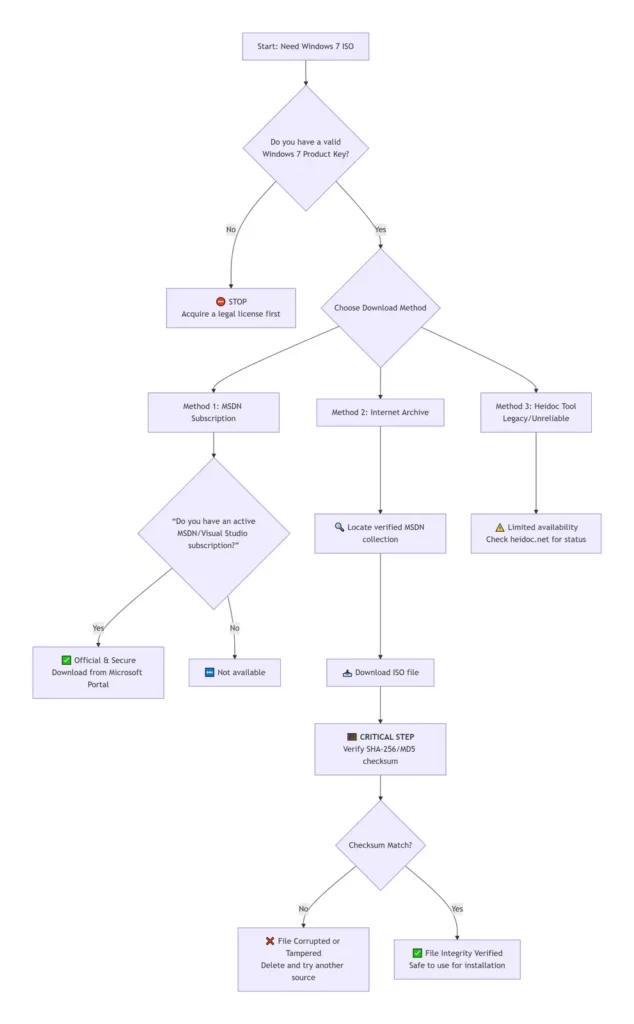
Microsoft has discontinued the official Windows 7 ISO download service for the general public. The only remaining official channel is through an MSDN (Microsoft Developer Network) or Visual Studio subscription, which is a paid service intended for software developers and is not inexpensive.
Method 2: Internet Archive (For Testing & Preservation)
The Internet Archive is a non-profit digital library that preserves software, including untouched Windows 7 installation files (ISOs). This is the most accessible source for verified ISOs intended for testing and legacy use.
- How to Find Files: Search for terms like “Windows 7 MSDN ISO” or “Windows 7 SP1” on
archive.org. - Verifying File Integrity: This is a critical security step. Always verify the downloaded file’s checksum against the one published by the source.
- Example Source: One verified collection on the Internet Archive includes original MSDN ISOs for multiple languages and editions (Ultimate, Professional VL), complete with MD5 and SHA-1 checksums for verification.
To help you choose the right path, here is a comparison of the main download methods:
Method 3: Third-Party Tools (Legacy & Unreliable)
Some third-party tools, like the “Heidoc Windows ISO Download Tool,” previously offered a way to fetch files from Microsoft’s servers. However, Microsoft has limited these services, making them an unreliable and often non-functional option today.
Installation and Security Hardening
Creating Installation Media & Installation Walkthrough
Once you have a verified ISO file and your product key, you can proceed with installation. For most modern computers, you will need to create a bootable USB drive, as optical drives (DVD) are less common.
- Create Bootable USB: Use a tool like Rufus to write the ISO file to a USB drive (8GB or larger). Ensure you select the correct partition scheme (usually GPT for UEFI systems or MBR for legacy BIOS).
- Installation Process: Boot from the USB drive and follow the on-screen setup. When prompted, enter your legitimate product key. A common issue is missing storage or network drivers for newer hardware, which may require you to load drivers during the “Where do you want to install Windows?” screen.
Critical Post-Installation Security Hardening
If the system must ever be connected to a network, even briefly, these steps are non-negotiable.
- Isolate the System: The single most effective security measure is to keep the system offline. If network access is absolutely necessary, place it behind a dedicated firewall on an isolated network segment.
- Use a Robust Firewall: Ensure the Windows Firewall is enabled and configured to block all unnecessary inbound and outbound connections.
- Install Third-Party Security Software: Since Microsoft Defender is outdated, install a reputable, modern third-party antivirus/antimalware solution that still supports Windows 7.
- Practice Least Privilege: Do not use an administrator account for daily tasks. Create and use a standard user account for all regular activities to limit the impact of potential malware.
- Disable Unnecessary Services: Turn off non-essential services like Windows Search, Remote Registry, and Print Spooler if not needed to reduce the attack surface.
Related: How to Format Windows 11
Conclusion and Recommendation
This guide outlines the pathways to obtain Windows 7 for essential legacy functions. However, it must be reiterated that using an unsupported operating system is a significant liability.
The recommended path forward is modernization. Explore secure alternatives:
- Upgrade Hardware/Software: If possible, upgrade the legacy application or the hardware it runs on to be compatible with a modern, supported version of Windows.
- Use a Lightweight Linux Distribution: For older hardware, many Linux distributions (like Lubuntu or Xubuntu) offer a lightweight, secure, and modern operating environment that can often run older Windows software via compatibility layers like Wine.
- Contain the Legacy System: If Windows 7 cannot be replaced, strictly contain it. Run it as a virtual machine on a modern, secured host computer, with no network access to your primary systems.
I hope this guide helps you navigate this legacy need safely. If you have a specific legacy application in mind, I may be able to suggest more modern alternatives or containment strategies.