
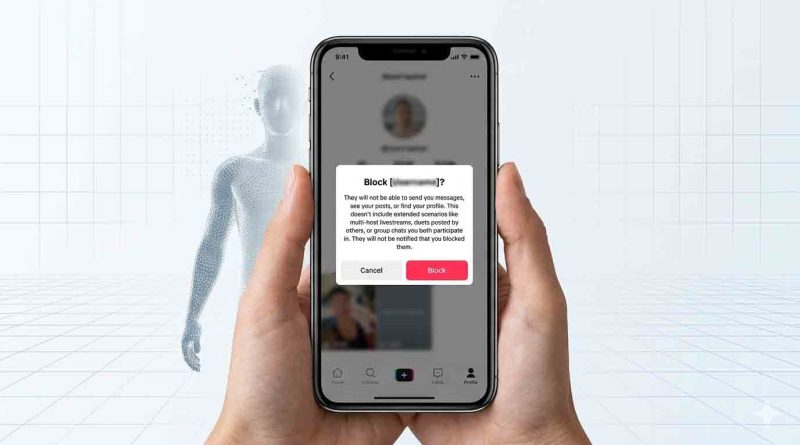
How to Block Someone on TikTok
No one should have to tolerate unwanted attention, spam, or harassment while scrolling through their feed. Knowing how to block someone on TikTok is essential for protecting your peace of mind and keeping your digital space safe. This comprehensive guide will walk you through every method of blocking users, explain the difference between blocking and other privacy tools, and show you how to manage your block list.
What Happens When You Block Someone on TikTok?
When you block someone on TikTok, the action is immediate and comprehensive. The blocked user will no longer be able to:
- View your profile, videos, likes, or bio
- Send you direct messages
- Follow you or interact with your content
- Tag you in posts or comments
- Find your account in searches
According to TikTok’s official Help Center, “blocking someone on TikTok means they can’t view your posts or engage with you through direct messages, comments, follows, or likes”. Importantly, the blocked person will not receive a notification that they’ve been blocked. However, they will quickly realize it when they can no longer find your profile or interact with your content.
There is no limit to the number of people you can block on TikTok, and the platform allows you to block anyone for any reason.
How to Block Someone on TikTok: Step-by-Step Guide
There are three main ways to block someone on TikTok, depending on where you encounter them.
Method 1: Block from Their Profile
This is the most direct method for learning how to block someone on TikTok by visiting their profile page.
Step 1: Open the TikTok app and navigate to the profile of the person you want to block. You can find them via the search bar, from a comment they left, or from your notifications.
Step 2: Tap the Share arrow icon located at the top right corner of their profile.
Step 3: From the menu that appears, select Block.
Step 4: Tap Block again to confirm your decision.
After confirmation, their profile will appear blank, and the “Follow” button will be replaced with an “Unblock” button.
Method 2: Block from Comments
If you’re dealing with unwanted comments on your videos, you can block users directly from the comments section.
Step 1: Go to one of your videos and tap the Comments button.
Step 2: Press and hold on a comment from the user you want to block.
Step 3: Select Manage multiple comments from the options that appear.
Step 4: Choose the comments from the accounts you wish to block, then tap More.
Step 5: Select Block accounts and confirm.
This method is particularly useful for blocking multiple spam accounts at once or handling harassment in your comment section.
Method 3: Block from Direct Messages
If someone is sending you unwanted direct messages, you can block them directly from your inbox.
Step 1: Open your Inbox on TikTok.
Step 2: Tap on the conversation with the person you want to block.
Step 3: Tap the three dots (or “More” options) at the top right corner.
Step 4: Select Block from the menu and confirm.
Also Read: How to Clear Facebook Cache on iPhone and iPad
How to Block Someone on TikTok Using a Computer
Prefer using TikTok on your desktop? The process is slightly different but just as simple.
Step 1: Log into your TikTok account on your browser at tiktok.com.
Step 2: Search for the user you want to block or click on their username during video playback.
Step 3: On their profile, click the three-dot icon next to the sharing option.
Step 4: Click Block and confirm the action.
The block will sync across your mobile app and desktop, so you don’t need to perform the action twice.
Restrict vs Block on TikTok: What’s the Difference?
Many users confuse TikTok’s various privacy controls. Understanding the difference between Restrict and Block will help you choose the right level of protection.
The “Restrict” feature is useful when you want to quietly limit someone’s ability to engage without them knowing, while how to block someone on TikTok is the stronger, more definitive solution for when you want to completely remove someone from your TikTok experience.
How to See and Manage Your Blocked Accounts List
TikTok maintains a complete list of everyone you’ve blocked, which you can access at any time.
Step 1: Go to your Profile and tap the three horizontal lines (☰) in the top right corner.
Step 2: Select Settings and privacy.
Step 3: Tap Privacy, then scroll down to Blocked accounts.
Here you will see a complete list of all users you have blocked. You can review this list periodically to ensure you haven’t blocked anyone by accident or to reconsider past decisions.
How to Unblock Someone on TikTok
Circumstances change, and you may eventually want to give someone a second chance. Here’s how to unblock someone on TikTok.
Option 1: From your blocked accounts list
Follow the steps above to reach your Blocked accounts list. Find the user you want to unblock and tap Unblock beside their name.
Option 2: From their profile
If you remember their username, you can search for their profile. Once on their profile, tap the Share arrow, then select Unblock from the menu.
When you unblock someone, they will not be notified. However, they will be able to find your profile, view your content, and interact with you again as if the block never happened.
Beyond Blocking: Additional Privacy Settings to Consider
While knowing how to block someone on TikTok is crucial, there are other privacy tools that can enhance your safety on the platform.
Make Your Account Private
Switching to a private account means only approved followers can view your content. This is an excellent option if you want to prevent unwanted users from seeing your videos in the first place. To do this, go to Settings and privacy > Privacy and toggle on Private account.
Control Who Can Comment on Your Videos
You can limit comments to “Friends,” “Followers,” or “No one” by adjusting your comment settings under Privacy > Comments.
Use Family Pairing for Teen Accounts
If you’re a parent concerned about your teen’s safety, TikTok’s Family Pairing feature allows you to link your account to your teen’s and manage their privacy settings, including who can send them messages and comment on their posts.
Report Abusive Users
If someone is harassing you or violating TikTok’s Community Guidelines, consider reporting them before blocking. TikTok’s account enforcement system takes action against repeat offenders, including permanent bans for severe violations. Reporting helps protect not only you but also other users who might encounter the same abusive behavior.
Frequently Asked Questions
Will someone know if I block them on TikTok?
No, TikTok does not send a notification when you block someone. However, they will likely realize they’ve been blocked when they can no longer find your profile or interact with your content.
Can I block someone without them knowing?
The block itself is silent—no notification is sent. But the blocked user will eventually notice they can’t access your profile. If you want to be more discreet, you can use the Restrict feature instead, which limits their ability to interact without them realizing their comments aren’t public.
How do I block someone who keeps making new accounts?
If someone is creating new accounts to harass you after being blocked, you can:
- Make your account private to approve followers manually
- Report their new accounts to TikTok for harassment
- Consider blocking them across other social media platforms where they might reach you
Can I block multiple people at once?
Yes. Using the comment management method described above, you can block multiple users simultaneously by selecting their comments and choosing Block accounts.
Final Thoughts
Knowing how to block someone on TikTok puts you in control of your social media experience. Whether you’re dealing with a persistent spammer, an online bully, or simply someone whose content you’d rather not see, blocking provides a clean, immediate solution.
Remember that TikTok offers a range of privacy tools beyond blocking. Combining how to block someone on TikTok with a private account, restricted comments, and thoughtful follower management creates a safer, more enjoyable experience on the platform.
Take a moment to review your privacy settings today—you deserve to scroll in peace.