
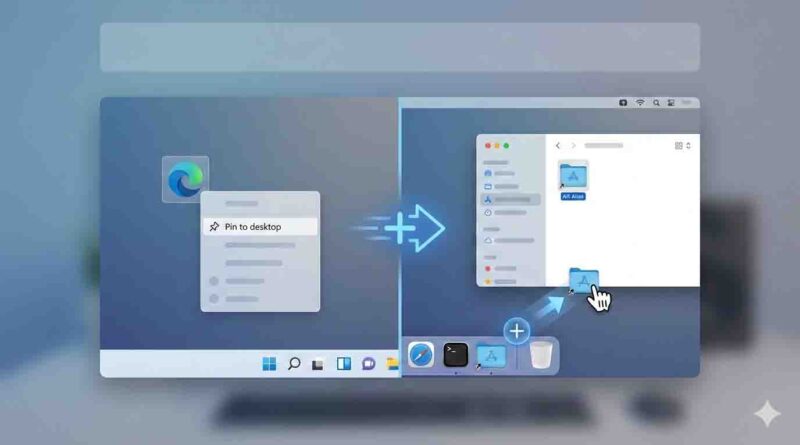
How to Add Apps to Your Desktop on Windows & Mac
Ever find yourself digging through menus or searching your computer every time you need to open a program? Learning how to add apps to desktop is the simplest digital organization trick you can master. Placing your most-used applications front and center on your screen saves time, reduces friction, and keeps your workflow smooth.
Whether you’re team Windows or Mac, this guide will walk you through the clear, step-by-step methods to create those convenient one-click shortcuts. Let’s transform your desktop from a cluttered space into a personalized command center tailored for your productivity.
How to Add Apps to Your Desktop in Windows
Windows offers a couple of straightforward ways to add program to desktop. These methods create “shortcuts”—small link files that point to the actual application. Deleting a shortcut won’t uninstall the program.
Method 1: From the Start Menu (Drag & Drop)
This is the quickest method for most users.
- Click the Start Menu (Windows icon) on your taskbar.
- Scroll through your app list or use the search bar to find the application you want.
- Click, hold, and drag the app’s icon directly from the Start Menu onto an empty space on your desktop.
- Release the mouse button. You’ll see a new icon appear on your desktop with a small arrow in the corner, indicating it’s a shortcut.
Method 2: Using “Create Shortcut” from the File Location
If dragging doesn’t work, or you need a shortcut for a specific file or folder, use this method.
- Locate the application’s main file (usually with a
.exeextension). A quick way is to right-click the app in the Start Menu and select “Open file location.” - In the folder that opens, right-click on the application’s main file.
- From the context menu, hover over or click “Send to.”
- Select “Desktop (create shortcut).” A new shortcut will instantly appear on your desktop.
Method 3: Pinning to Taskbar vs. Desktop
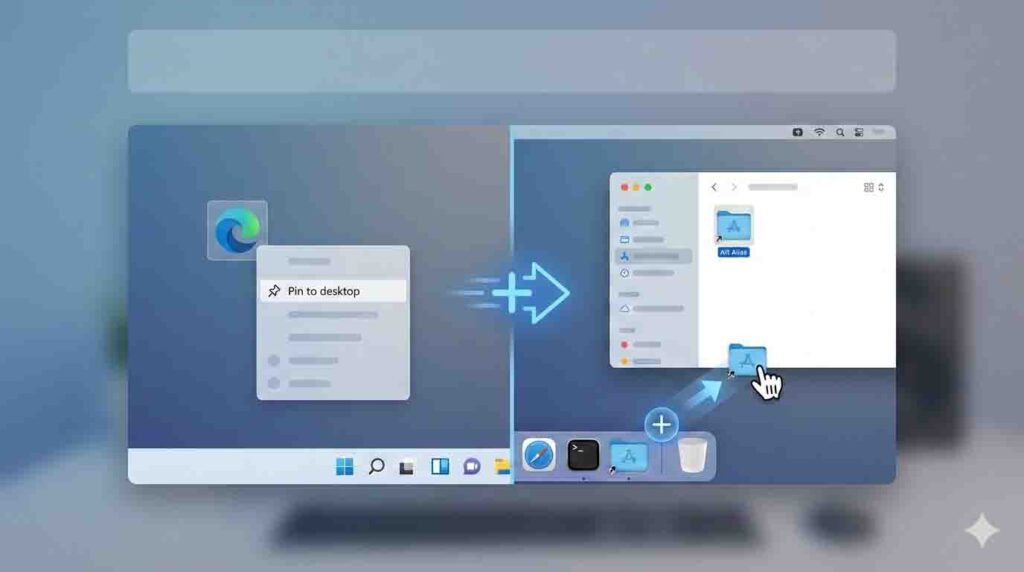
- Pin to Desktop: Creates an icon directly on your desktop workspace, as shown in the methods above. Ideal for when you prefer to launch apps from your main screen area.
- Pin to Taskbar: This keeps the app icon on the bottom (or side) of your screen for constant, one-click access, even when other windows are open. To do this, simply right-click an app in the Start Menu and select “Pin to taskbar.” Many users combine both for ultimate convenience.
How to Add Apps to Desktop on Mac
On macOS, the process involves creating an “alias” (the Mac equivalent of a Windows shortcut). The core principle is to never move the actual application out of your Applications folder.
Method 1: Drag from the Applications Folder with the Option Key
This is the standard and recommended method.
- Open a new Finder window.
- In the left sidebar, click on “Applications.”
- Find the app you want to add to your desktop.
- Hold down the
OptionandCommandkeys on your keyboard. - While holding the keys, click, hold, and drag the application icon to your desktop.
- Release the mouse button before releasing the keys. You’ll see a small curved arrow on the new icon, indicating it’s an alias.
Method 2: Using the Dock (Alias vs. Moving)
- Add to Dock: Simply drag an app from the Applications folder to the Dock. This keeps it in a handy bar for easy launching but not on the desktop itself.
- Creating a Desktop Alias via Right-Click: You can also right-click (or Control-click) an application in your
Applicationsfolder and select “Make Alias.” A new alias file will appear in the same folder, which you can then drag to your desktop. - Crucial Note: Dragging an app to the desktop without holding
Option+Commandwill move the entire application, which can cause issues. Always use the modifier keys to create an alias.
Also Read, How to Reset Windows 10 Password Without Logging In
Troubleshooting and FAQs
Encountering a problem? Here are solutions to common issues.
“The ‘Create Shortcut’ or ‘Send to’ option is grayed out in Windows.”
- Cause: This often happens with Universal Windows Platform (UWP) apps from the Microsoft Store (like Mail, Weather).
- Solution: Use Method 1 (Drag from Start Menu). Most Store apps can be dragged directly to the desktop. If not, consider pinning them to the Start Menu or Taskbar instead.
The shortcut icon is blank or shows a generic image.
- Cause: The icon cache is corrupted.
- Solution (Windows): Search for “Command Prompt,” right-click it, and select “Run as administrator.” Type
ie4uinit.exe -cleariconcacheand press Enter. Restart your PC. - Solution (Mac): Restart your Mac, which often clears temporary glitches.
I can’t drag apps from the macOS Launchpad.
- True: You cannot create aliases from Launchpad. You must use the Applications folder in Finder as described in Method 1.
Is there a shortcut key for desktop shortcut creation?
- Windows: There’s no universal single key. The fastest method is the drag-and-drop from the Start Menu.
- Mac: The keyboard modifiers (
Option+Command) during the drag action are the dedicated shortcut key for desktop shortcut creation.
My new desktop icon doesn’t open the app.
- Cause: The original application was moved, renamed, or uninstalled.
- Solution: Delete the broken shortcut. Create a new one using the methods above, ensuring the original app is in its correct location (e.g., the
Applicationsfolder on Mac,Program Fileson Windows).
Conclusion: Keeping Your Desktop Organized
Mastering how to add apps to desktop is a small change that delivers significant daily rewards in efficiency. By following the steps for your Windows or Mac system, you’ve moved beyond navigating folders and menus to instant access. Remember, whether you dragged an icon from the Start Menu or created an alias from the Applications folder, the goal is to build a workspace that works for you. Take a moment to arrange your new shortcuts logically, and enjoy the simple pleasure of launching your favorite apps with a single, satisfying double-click. Here’s to a cleaner, faster, and more organized computing experience