
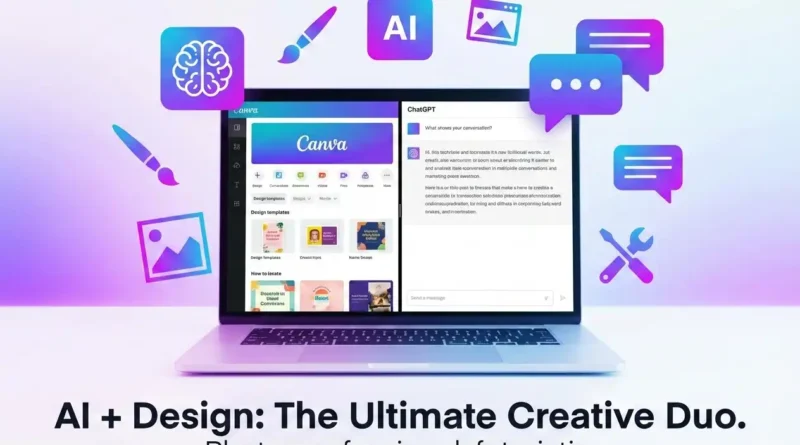
Canva and ChatGPT: The Ultimate Creative Duo
Artificial intelligence is reshaping how we create content, and two of the most powerful tools—Canva and ChatGPT—are now linked together. This integration allows you to generate copy, brainstorm ideas, and instantly transform them into polished designs. Let’s break down how to connect, use, and maximize the Canva + ChatGPT plugin.
How to Connect Canva and ChatGPT
- Open ChatGPT and click your profile name
- Click Settings → Apps → Explore apps.
- Select Canva from the available apps.
- Click Connect → Continue.
- Approve the requested permissions to link your Canva account.
- Once connected, you’ll see Canva as an option inside ChatGPT’s chat box.
👉 Note: The Canva plugin is available for free and paid ChatGPT accounts, but not yet accessible in China or the EU.
How to Use Canva Inside ChatGPT: Prompting for Results
With the connection active, using Canva becomes a natural part of your ChatGPT conversation. The key is in crafting effective prompts.
Basic Workflow:
- In the main chat box, simply describe the design you want to create. Be as specific as possible.
- ChatGPT will process your request and show you a selection of design previews generated in Canva.
- Select the preview you like best. ChatGPT will then provide a link to open and start editing that design directly in Canva.
To get the best results, structure your prompts like a creative brief. Here are practical examples:
Canva and ChatGPT Plugin Explained
The Canva plugin for ChatGPT acts as a bridge between text and design. Instead of switching between apps, you can:
- Brainstorm ideas with ChatGPT.
- Generate visuals in Canva instantly.
- Edit and finalize designs without leaving the chat.
This plugin is perfect for:
- Social media managers creating posts.
- Entrepreneurs designing pitch decks.
- Students preparing presentations.
- Bloggers making graphics for articles.
Comparison: Canva vs. ChatGPT vs. Plugin
| Feature | Canva Alone | ChatGPT Alone | Canva + ChatGPT Plugin |
|---|---|---|---|
| Text Generation | ❌ | ✅ | ✅ |
| Graphic Design | ✅ | ❌ | ✅ |
| Workflow Efficiency | Medium | Medium | High |
| Best Use Case | Visuals | Ideas/Copy | Combined Creative Flow |
Understanding the Limitations and Maximizing the Workflow
To use this tool effectively, it’s important to know its boundaries.
- A Starting Point, Not a Finished Product: AI-generated designs are seldom perfect. You should expect to fine-tune the layout, colors, and fonts in Canva to match your brand perfectly. Think of the integration as your ultra-fast first draft artist.
- Feature Limitations in Chat: Certain powerful Canva Pro features, such as Magic Resize, Brand Kits, and advanced exporting options, are not available within the ChatGPT interface. To use these, you must open your design in Canva’s full editor.
- API Rate Limits: If you’re generating many designs in quick succession, you might encounter ChatGPT’s API rate limits, which could temporarily slow down your requests.
Pro-Tip for an Advanced Workflow: For the ultimate content creation pipeline, consider feeding raw ideas from other sources into this duo. For example, use a meeting transcription tool like Tactiq to capture discussion notes. You can then ask ChatGPT to summarize the notes into key points and immediately turn those points into a Canva presentation or infographic. This creates a powerful flow from spoken word to polished visual asset.
Frequently Asked Questions (FAQ)
Do I need design skills to use this?
Not at all. The integration is designed to give you a strong, professional starting point. ChatGPT handles the initial text and template selection, so you only need to make final adjustments.
Can I use it for team collaboration?
Yes. Once a design is opened in Canva, you can share it with your team for collaboration just like any other Canva project. Advanced team features like shared Brand Kits require a Canva Pro plan.
Is my data safe when I connect the accounts?
As with any app connection, you should review the permissions you grant. When you connect Canva, you are allowing ChatGPT to access your Canva account to create and manage designs. You can disconnect the app at any time from your ChatGPT Settings.
Also read, The Best AI Video Generators
Conclusion: The Future of Content Creation is Integrated
The Canva and ChatGPT integration is a game-changer for creators. Whether you’re drafting marketing copy, designing social posts, or preparing a presentation, this plugin saves time and sparks creativity.
By following the steps in this guide, you can unlock a workflow where your creativity is the only limit. Start with specific prompts, embrace the first draft it provides, and use Canva’s powerful editor to add the final, personal touches. As AI tools continue to evolve, learning to harness combinations like this will be key to staying ahead in the fast-paced world of digital content.
Now, it’s your turn. Open ChatGPT, connect your Canva account, and type your first design prompt. You might be surprised at how quickly your ideas come to life